
In today’s fast-paced development world, AI-powered coding assistants have become an essential tools for boosting productivity. These tools usually comes pre-installed inside AI IDE likes Cursor, Angtigravity by Google or Kiro by AWS. It is really helpful in boost up the productivity such as writing codes from scratch, fix bugs, setting up unit tests, and etc. Most of these IDE comes with AI coding assistants that already have popular coding models, such as Gemini 3, Claude Sonnet or Opus, GPT-5 and others. However, for free version, the executions are limited.
According to Cursor, free plan(Hobby) will have 50 slow premium model uses per month (token-based) and 2,000 completions per month (execution-based). For Kiro, for non paid version, it is around 50 Vibe requests per month and 0 Spec requests per month. For a hobbyist, that are just starting to work with AI coding assistant, these are probably enough, but for full time coder, these are basically just celah gigi je, barely enough to get you through a single focused session 😅. Hence, to solve this, we will need to setup a local coding assistant, and attached it to the IDE.
This article is exactly to solve this issue of having limited AI coding assistant executions, without breaking your wallet.
What you need:

Ollama: Your Local AI Powerhouse
Ollama is an open-source framework that lets you run large language models (LLMs) locally on your machine. This means:
- Complete privacy: Your code never leaves your computer
- Zero API costs: No monthly subscriptions or pay-per-call fees
- Offline capability: Code anywhere, even without internet
- Customizable models: Choose from various open-source models optimized for coding
Cursor IDE: The AI-Native Editor
Cursor is a modern code editor built with AI integration at its core. While it offers paid cloud-based AI features, the AI coding executions are quite limited, as we discussed above. However, its true power emerges when paired with a local AI backend like Ollama:
- Intelligent code completion: Context-aware suggestions
- Chat interface: Natural language conversations about your code
- Refactoring tools: AI-assisted code improvements
- Familiar interface: Feels like VS Code but with enhanced AI capabilities
Getting started:
-
Install ollama on your local
// Visit ollama.ai and download for your OS or ~ brew install ollama // on mac terminal ~ ollama serve -
Once
ollama serveis being run, you can see that ollama are ready to receive request and response.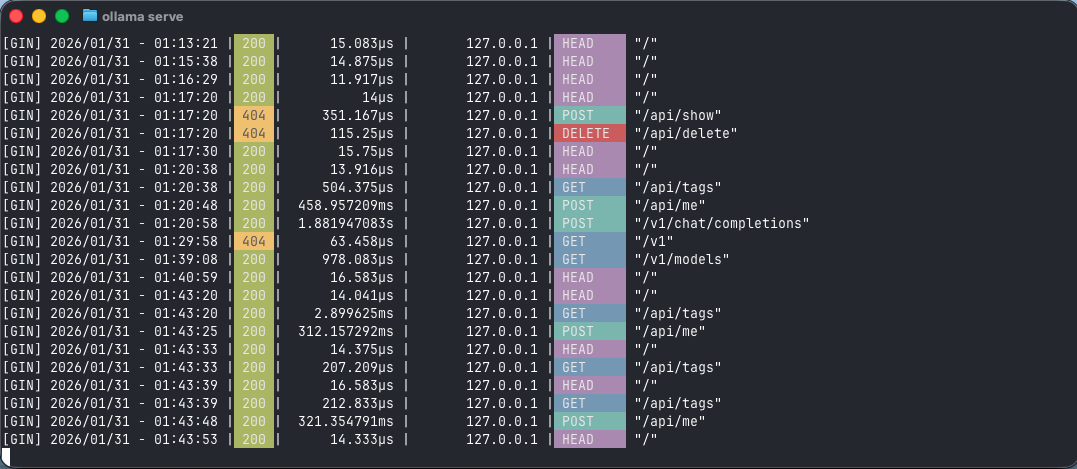
-
Pull models that suits your use cases. According to ChatGPT, there are several models that are suitable for AI coding assistant, such as:
kimi-k2.5:cloud- least storage used, since this model is oncloudcodellama:7b-code- 3.8GBmistral:7b-instruct- 4.4GBdeepseek-coder-v2- 8.9GB
-
You can go to https://ollama.com/search to view list of models, including the one above. One thing to note, these models are being trained with billions of parameters, some are more, hence the size are huge, which means they’ll eat up tens of gigabytes on your disk and demand serious RAM just to run smoothly, so make sure your machine is ready, since you’ll be staring at a download bar for a while 😂.
-
Open another terminal and run
ollama run <model-name>to pull and run the model into the local storage. You will see something like this.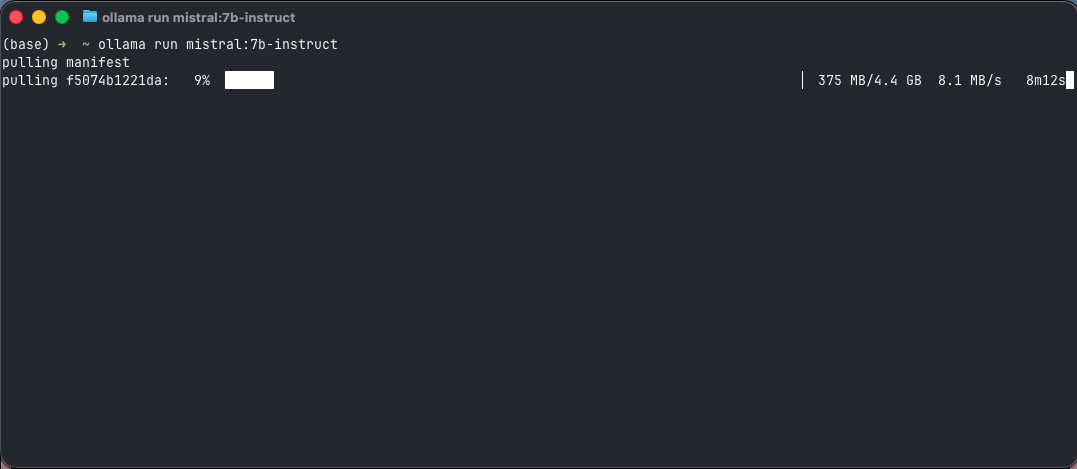
-
Once download is done, try calling the model, ie
mistral:7b-instructto ensure that we can make a request successfully. I tried with Hello, and the model response successfully, means we are able to communicate with it.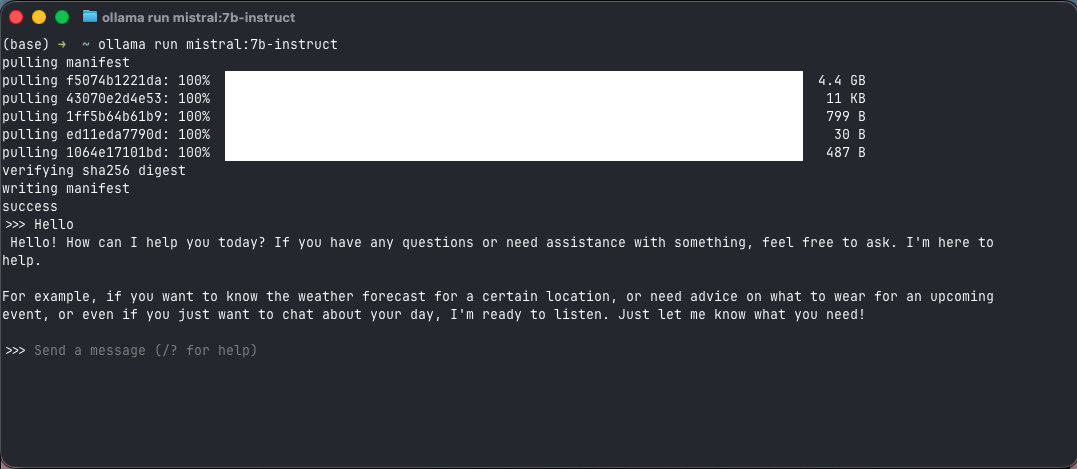
-
One thing to remember, you might need to login first in order to run a cloud model, ie
kimi-k2.5:cloud. Then, you are good to go.ollama signin
Cool, whats next?
Now, in this phase, you have two choice, either wants to run the model directly from the terminal or IDE. Both are great but serving different purposes.
Directly from terminal
To run directly from terminal, you can use OpenCode. OpenCode is an open-source AI coding assistant that runs in your terminal (CLI-based). It's similar to tools like Aider or Claude Code, but designed to work with multiple AI model providers including Ollama. Follow these steps below.
-
Navigate to the work repo that you wants to utilize OpenCode
~ cd /your/work/repo/directory -
Then, lets install OpenCode.
// To install opencode, run either one of this command ~ brew install anomalyco/tap/opencode or ~ curl -fsSL https://opencode.ai/install | bash or ~ npm i -g opencode-ai -
On the terminal that you use to download the model, you can close it by clicking
Ctl + dor/bye. Close it and run these commands.// run launch command and select opencode ~ ollama launch Select integration: claude - Claude Code clawdbot - Clawdbot codex - Codex droid - Droid > opencode - OpenCode (mistral:7b-instruct) // if model not attached, click and select mistral -
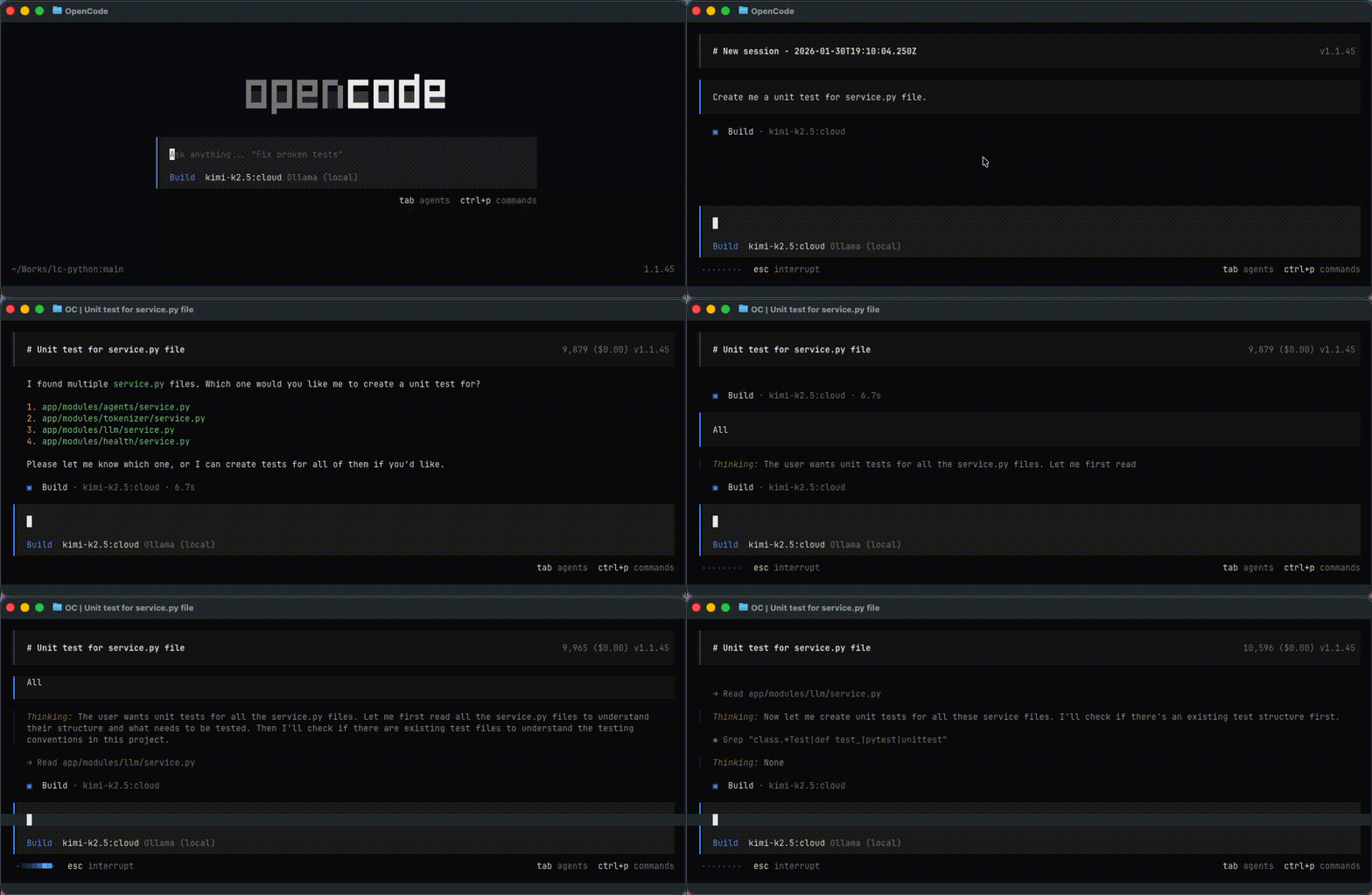
Once done attaching a model to OpenCode AI coding assistant, click Enter. You will see interface like this. Since you are already in work directory, you can start working on codes straight away.
Inside Cursor IDE
To enable custom model in your Cursor, there are extra steps that needs to be done. Follow the steps below. This approach might be a bit technical and safe to only use locally. Only do this steps if you are confirm that Ollama service and models live on your local instance.
-
In order to run alternative model other than default provided in Cursor IDE, you need to add a custom model. Just maintain the
ollama serveterminal just now. Ollama is hosted athttp://localhost:11434. To avoid getting errorssrf_blocked, IP blocked from Cursor, this host need to be expose to a tunnel. We can usengrokas a simplest option Open another terminal and runngrokas tunnel.// The error mentioned above { "error": { "type": "client", "reason": "ssrf_blocked", "message": "connection to private IP is blocked", "retryable": false } } -
Once done, install
ngrokif package not yet exist, and run it to expose port11434// If ngrok is not yet installed ~ brew install ngrok ~ ngrok http 11434 -
Once online, you will get the
ngrokforwarded url. For example:https://abc123.ngrok-free.app -
Test this url to ensure it work. We will use
mistral:7b-instructmodel, which is the one that have been installed earlier.~ curl https://abc123.ngrok-free.app/v1/chat/completions \ -H "Content-Type: application/json" \ -d '{ "model": "mistral:7b-instruct", "messages": [{"role": "user", "content": "Hello"}] }' // model responded successfully { "id": "chatcmpl-310", "object": "chat.completion", "created": 1769807967, "model": "mistral:7b-instruct", "system_fingerprint": "fp_ollama", "choices": [ { "index": 0, "message": { "role": "assistant", "content": " Hello there! How can I help you today? It seems we're having a simple chat, so let's talk about anything that catches your interest.\n\nWhile we're here, did you know that I was designed to provide accurate answers, helpful explanations, and interesting conversation on a wide range of topics such as science, technology, history, literature, and more? So if you have any questions or topics you'd like to discuss, feel free to ask!\n\nIf you need assistance with something specific, just let me know. I am always eager to help!" }, "finish_reason": "stop" } ], "usage": { "prompt_tokens": 5, "completion_tokens": 122, "total_tokens": 127 } } -
Looks good. Now, back to Cursor. Follow these steps.
1. Click `Cmd + Shift + P`. 2. Select `>Cursor Setting`. 3. On the left sidebar, select `Models`. // On Models pane 4. Scroll down until you see `View all Models`. Click it. 5. It will display all available models. Now keep scrolling down until you see `+ Add Custom Model`. Click it. 6. Write `mistral:7b-instruct` and click `Add`. This model will be added to the list. 7. Confirm this by searching it in the search model bar. // On API keys (NOTE: This will temporarily disable default model) 8. Below the model pane, you can see `API Keys`. Open it. 9. On `OpenAI`, enable the radio button on the right side. 10. On the `API Key` text field, just fill in `ollama` or leave it as null. This `API Key` parameter wont be utilized since we wont be calling external OpenAI endpoint. 11. Below, enable the `Override OpenAI base URL`. 12. Enter the `ngrok` url as we set up above just now. 13. Save it. // On the AI code assistant on the right panel 14. Now, you can view the newly added model. 15. Click the select model dropdown and select `mistral:7b-instruct`. 16. Test it by sending "Hello". 17. Test it more by requesting a code change. Something like, "Refactor this file". -
To revert to previous changes, you can just disable back the API keys setting. Just toggle the radio button off and it is good to go. The custom model will no longer works in Cursor but, this will re-enable default models from Cursor that utilizing OpenAI, ie
Composer 1,GPT-5and others.
Done, now you have a custom model running with the Cursor IDE.
Great, now you have set up the custom models and able to run it successfully. One thing to note, this setup isn’t meant to replace paid coding assistants forever and that’s okay.
If you’re coding full-time and already happy paying for a subscription, that convenience is hard to beat. But when you’re on a free IDE tier, model access is limited, usage is capped, and the “good stuff” always sits behind an upgrade button. Running a local model with Ollama is a solid alternative. Not permanent. Not perfect. But powerful enough to keep you productive without burning your wallet.
Even better, it turns your IDE into a playground. You’re no longer locked into a single model you can actually experiment. Try deepseek-coder for reasoning-heavy tasks, switch to kimi-k2.5 for long-context work, or spin up codellama-coder and see how it handles your day-to-day patterns.
Think of it less as “replacing” your coding assistant, and more as test-driving brains locally, cheaply, and on your own terms.
At worst, you learn which models don’t work for you 😅.
At best, you find one that fits your workflow so well that paying monthly suddenly feels… optional.
Happy tinkering 👷 🛠️.
Written with love by Arif Mustaffa
Back to blog page